 SSH Command
01
SFTP and SCP, side by side
Two panes, local and remote, with Files · SFTP, Shell · SSH and Copy · SCP one click apart on the same connection.
SSH Command is a modern WinSCP and FileZilla alternative: dual-pane SFTP and SCP, a live SSH shell on the same connection, jump hosts, explicit sudo and an encrypted vault.
Free for personal use · Mac (Apple Silicon), Windows and Linux · Commercial licence $39 once, see pricing
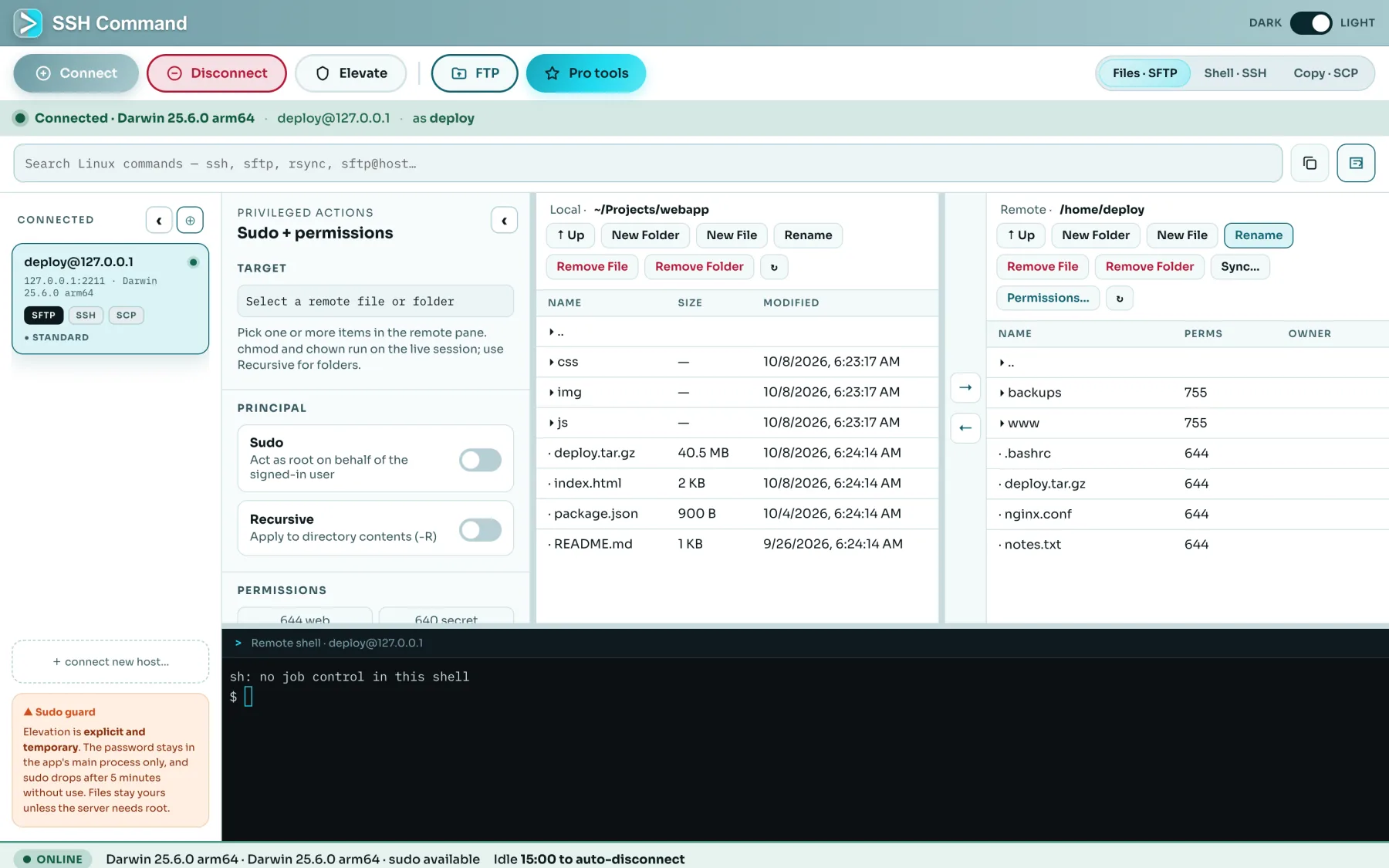
Files, shell and keys in one calm window — built for people who live on Linux servers.
Two panes, local and remote, with Files · SFTP, Shell · SSH and Copy · SCP one click apart on the same connection.
Uses your SSH agent, ~/.ssh keys and ~/.ssh/config aliases, including ProxyJump. Type an alias and the host, port, user and jump host fill in.
Reach servers behind a bastion. Local, remote and SOCKS port forwards, remembered per server. Both are free.
When the server refuses an action, elevate for that moment only. Five idle minutes later it drops on its own.
Host key fingerprints on first use, a loud warning if they change, and an encrypted vault for saved logins.
Auto-reconnect with backoff re-opens your shell and tunnels after a network blip, and never trusts a key you did not accept.
Upload a file, then run ls -l on the same login. Copy with SCP when you only have scp on the other end. Search Linux commands and send them straight into the shell.
Both are excellent, free tools. Here is where each is the better fit.
| Capability | SSH Command | WinSCP | FileZilla Client |
|---|---|---|---|
| SFTP dual-pane file manager | Yes | Yes | Yes |
| SCP | Yes | Yes | No |
| FTP & FTPS | Yes | Yes | Yes |
| Interactive SSH shell in the same app | Built in (xterm) | Opens PuTTY / limited console | No |
| Files and shell share one SSH connection | Yes | Separate windows | No |
| Reads OpenSSH config (aliases, ProxyJump, keys) | Yes | Imports PuTTY sessions | No |
| Jump hosts & port forwarding | Yes (free) | Tunnels supported | No built-in SSH tunnels |
| Elevate to root only when you ask | Explicit, time-limited sudo | Optional sudo / su settings | No |
| Auto-reconnect after a dropped connection | Yes | Configurable | Configurable retries |
| Folder sync with a preview | Pro | Yes — synchronize | Compare / sync browsing |
| Scheduling | Pro — scheduled transfers | Task Scheduler + scripting | No |
| Command-line scripting & automation | Not yet | Strong — a core strength | Limited CLI |
| Transfer queue with resume | Not yet | Yes | Yes |
| Mac | Yes (Apple Silicon) | No — Windows only | Yes |
| Windows | Yes | Yes | Yes |
| Linux | Yes — AppImage & .deb | No | Yes |
| Source code | Closed (free for personal use) | Open source | Open source |
| Price | Free personal · $39 once for work | Free | Free · paid Pro edition |
FileZilla, WinSCP and PuTTY are trademarks of their respective owners; SSH Command is not affiliated with them. The comparison reflects the publicly documented features of their current desktop clients at the time of writing and is meant to be fair, so it also lists where they are stronger. Spotted something out of date? Tell us.
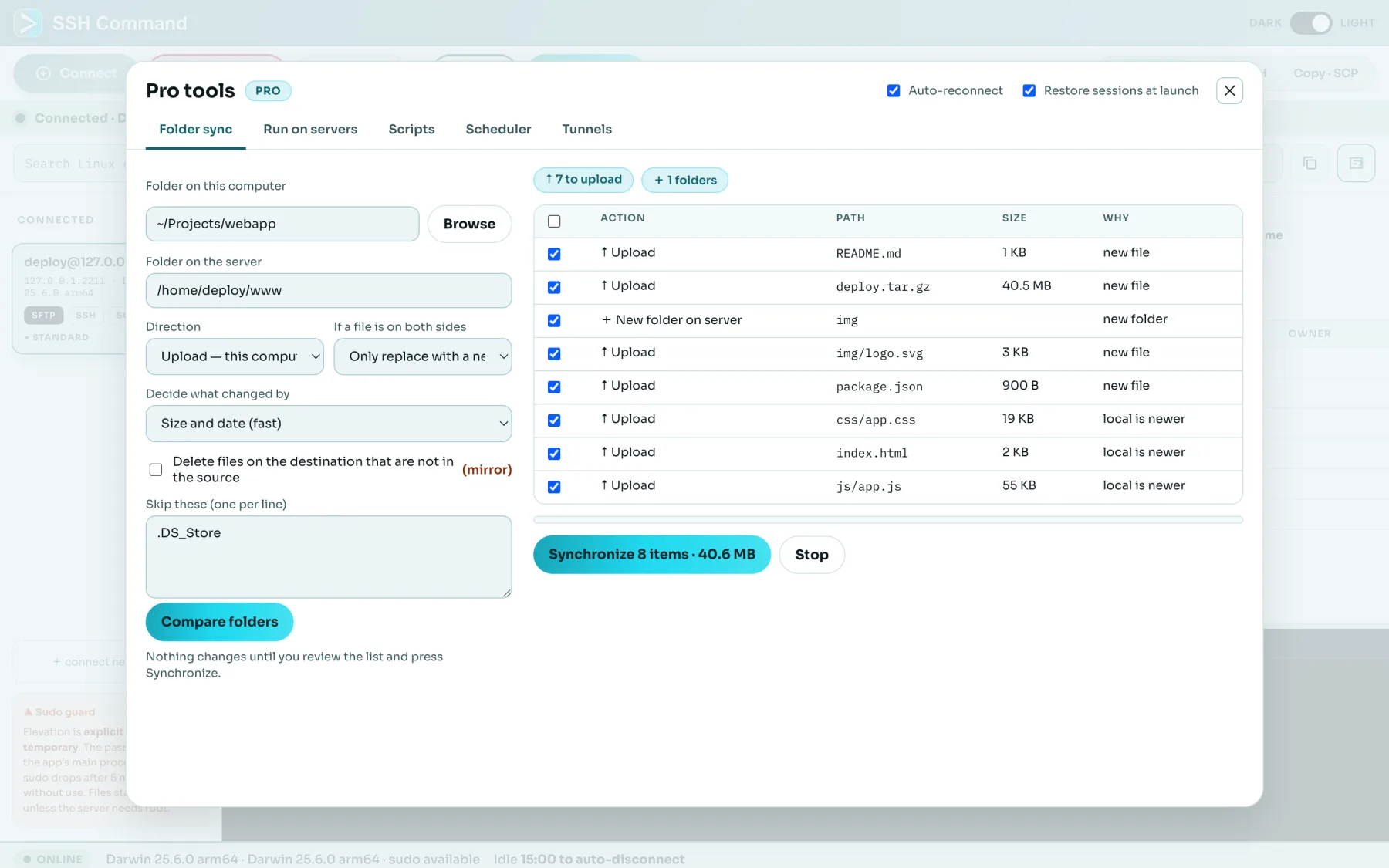
The $39 one-time commercial licence adds the tools you reach for when you manage more than one server.
That depends on your workflow. SSH Command is built for people who want files and a terminal on the same SSH connection: dual-pane SFTP, SCP, an interactive shell, jump hosts, port forwarding and an encrypted vault, on Mac (Apple Silicon), Windows and Linux. WinSCP is excellent if you live on Windows and need scripting; FileZilla is a solid free choice for FTP and SFTP.
Yes, especially for Mac and Linux users, since WinSCP is Windows-only. SSH Command gives you the familiar two-pane SFTP and SCP view plus a built-in shell, with sudo available only when you ask for it. WinSCP is stronger at scripting and automation from the command line.
Yes. Type a host alias and SSH Command fills in the host name, port, user, identity files and any ProxyJump from your OpenSSH config, just like the ssh command does. It also uses your SSH agent and the default keys in ~/.ssh.
On first connection you see the server’s host key fingerprint and decide whether to trust it. SSH Command remembers it and warns you if it ever changes. Unattended jobs and automatic reconnects only trust keys you already accepted.
Yes. Elevation is explicit and temporary: you turn it on, SSH Command retries the refused action as root with sudo, and it drops back after five idle minutes. Your login never changes.
No. SFTP runs inside SSH (port 22). FTPS is the older FTP protocol wrapped in TLS. SSH Command supports both — see the FTP and FTPS page — plus plain FTP and SCP.
Free for personal use. Work use needs a one-time $39 per-user licence with 12 months of updates, usable on up to four of your own devices. SFTP, SCP, the shell, jump hosts, port forwarding and auto-reconnect are free; Pro tools such as folder sync and scheduled transfers need the licence.
Yes. If a file with the same name exists on the server (or locally when downloading), you see a dialog with both versions’ size and date and choose which to replace, with an opt-out for the session.
Coming from FileZilla and want plain FTP or FTPS? See the FileZilla alternative page.
Mac, Windows and Linux. No account needed to start; a one-time commercial licence is $39 per user.